So recently I came across a fellow artist who was struggling to find a free art program, and considering dropping the large amount of money for a Photoshop license. I know not everyone can afford such an expensive program, so I’ve compiled a list of programs with no cost to download and use.
Keep in mind all computers are different, so not all will work for everyone. Also, I’ve only ever used Windows, so for the most part, I’m not sure if everything will work for Mac. if in doubt check the website linked.
If you know more free programs, please add onto this!
OpenToonz has made many improvements since it’s initial release! (Windows & Mac)
Medibang Paint is a comic drawing software forked from FireAlpaca mentioned earlier in this post, and is available for mobile devices as well! (Windows, Mac, iOS, Android)
this is my favorite art program. it’s *much* more intuitive than photoshop/gimp or corel paintshop, but it still has the full functionality of a digital art program (layers, brush stabilizer, etc.). it’s not overwhelming to start on like practically every other decent art program I’ve tried, you can just pick a brush and start drawing as if it were paper if you want. plus you can download extra brushes for free! and they publish free art tutorials pretty regularly
ANYONE looking for a free art program: worth looking into.
YALL I LOVE THIS PROGRAM, especially the ipad version!! and i’m psyched that i don’t have to pay $30 a year for it anymore!!!
So recently I came across a fellow artist who was struggling to find a free art program, and considering dropping the large amount of money for a Photoshop license. I know not everyone can afford such an expensive program, so I’ve compiled a list of programs with no cost to download and use.
Keep in mind all computers are different, so not all will work for everyone. Also, I’ve only ever used Windows, so for the most part, I’m not sure if everything will work for Mac. if in doubt check the website linked.
If you know more free programs, please add onto this!
OpenToonz has made many improvements since it’s initial release! (Windows & Mac)
Medibang Paint is a comic drawing software forked from FireAlpaca mentioned earlier in this post, and is available for mobile devices as well! (Windows, Mac, iOS, Android)
Sharing is Caring 🙂
Autodesk sketchbook is free too ^^
Tho you have to buy the full version, but the free one is good for quick sketches
When I received my Intuos5 in 2012, I expected it to turn me into a drawing grand master with all the cool extra functions it had.
I was a bit disappointed to find out that it drew exactly like my old Bamboo, except the pen was nicer to hold. Since then, I’ve tried not to throw more money at Wacom
than I absolutely have to.
I’m currently using a medium Wacom ONE, which is Wacom’s cheapest tablet. The pressure sensitivity is great, and it draws
perfectly well. However, it’s less comfortable to use compared to my
previous Wacom tablets. Since I do use the tablet for hours every day I decided
to do a bit of DIY!
1)
Changing the nib
The Wacom tablet pen comes with the default
plastic nib which works but I like the other nibs better.
I found that the white-tipped flex nibs are
nice for smooth, worn out tablet surfaces. I used them a lot last year when I did
digital painting.
Nowadays, I spend a lot of time sketching and
doing detailed lineart on the computer. I find the grey felt tips more suited for
this task, for they provide a more pencil-like texture.
The nibs used to be marketed as only compatible with
professional range tablets. Honestly, though, they work with any cheap Wacom
tablet! I’ve tried these nibs on my old Bamboo Pen and Intuos Draw and they fit
just fine.
2)
Protecting the surface with Bristol Board
Ever since I started working on my comic in
2015, I spend around 3 hours using my tablet every day. I managed to create a
smooth shiny bald patch on this tablet in a month.
I couldn’t find any good surface protectors
on the internet so I experimented with different types of papers.
So far, my favourite is the Bristol Board.
It has an extremely fine paper texture that comes pretty close to the original
surface texture of the tablet.
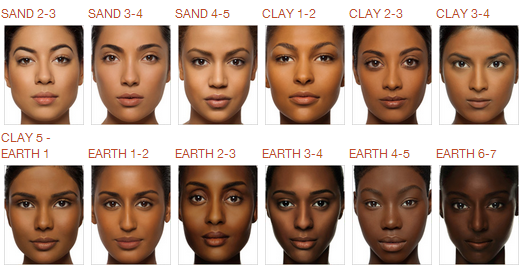
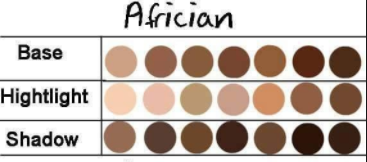
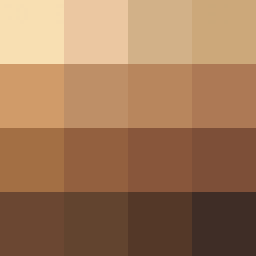
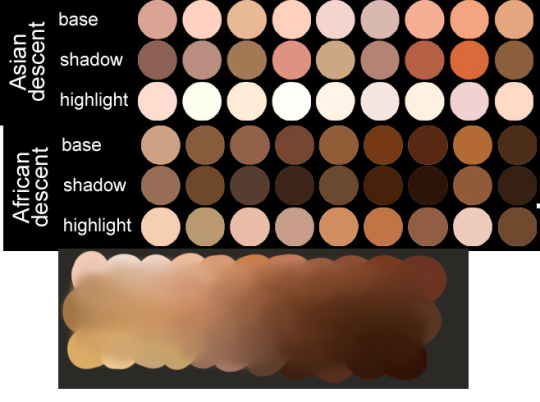
if you’re doing black edits of a character please please please use a color palette for reference so your edit doesn’t end up looking racist (like orange/red) here are some good ones
4” x 6” (600 pixels x 900 pixels) 5” x 7” (750 pixels x 1050 pixels) 6” x 6” (900 pixels x 900 pixels) 8” x 10” (1200 pixels x 1500 pixels) 8.5” x 11” (1275 pixels x 1650 pixels) 11” x 14” (1650 pixels x 2100 pixels) 12” x 12” (1800 pixels x 1800 pixels) 12” x 16” (1800 pixels x 2400 pixels)
16” x 20” (2400 pixels x 3000 pixels)
18” x 24” (2700 pixels x 3600 pixels)
19” x 13” (2850 pixels x 1950 pixels)
20” x 24” (3000 pixels x 3600 pixels)
24” x 24” (3600 pixels x 3600 pixels)
12” x 36” (1800 pixels x 5400 pixels)
24” x 36” (3600 pixels x 5400 pixels)
Um, other people have pointed this out, but those are 150 dpi (dots per inch) sizes. Standard print resolution is 300 dpi. High-resolution giclee prints can go much denser (there are printers that do 1800 dpi and above). If you want to find the right number of pixels, multiply the desired dpi by the inches (so a 4″ x 6″ = 4*300 x 6*300 = 1200 x 1800 pixels).
There’s some other complications, since printing a digital image always has some translation issues, but those are the basics.
150 dpi
4" x 6" (600 pixels x 900 pixels) 5" x 7" (750 pixels x 1050 pixels) 6" x 6" (900 pixels x 900 pixels) 8" x 10" (1200 pixels x 1500 pixels) 8.5" x 11" (1275 pixels x 1650 pixels) 11" x 14" (1650 pixels x 2100 pixels) 12" x 12" (1800 pixels x 1800 pixels) 12" x 16" (1800 pixels x 2400 pixels) 16" x 20" (2400 pixels x 3000 pixels) 18" x 24" (2700 pixels x 3600 pixels) 19" x 13" (2850 pixels x 1950 pixels) 20" x 24" (3000 pixels x 3600 pixels) 24" x 24" (3600 pixels x 3600 pixels) 12" x 36" (1800 pixels x 5400 pixels) 24" x 36" (3600 pixels x 5400 pixels)
300 dpi
4" x 6" (1200 pixels x 1800 pixels) 5" x 7" (1500 pixels x 2100 pixels) 6" x 6" (1800 pixels x 1800 pixels) 8" x 10" (2400 pixels x 3000 pixels) 8.5" x 11" (2550 pixels x 3300 pixels) 11" x 14" (3300 pixels x 4200 pixels) 12" x 12" (3600 pixels x 3600 pixels) 12" x 16" (3600 pixels x 4800 pixels) 16" x 20" (4800 pixels x 6000 pixels) 18" x 24" (5400 pixels x 7200 pixels) 19" x 13" (5700 pixels x 3900 pixels) 20" x 24" (6000 pixels x 7200 pixels) 24" x 24" (7200 pixels x 7200 pixels) 12" x 36" (3600 pixels x 10800 pixels) 24" x 36" (7200 pixels x 10800 pixels)
450 dpi
4" x 6" (1800 pixels x 2700 pixels) 5" x 7" (2250 pixels x 3150 pixels) 6" x 6" (2700 pixels x 2700 pixels) 8" x 10" (3600 pixels x 4500 pixels) 8.5" x 11" (3825 pixels x 4950 pixels) 11" x 14" (4950 pixels x 6300 pixels) 12" x 12" (5400 pixels x 5400 pixels) 12" x 16" (5400 pixels x 7200 pixels) 16" x 20" (7200 pixels x 9000 pixels) 18" x 24" (8100 pixels x 10800 pixels) 19" x 13" (8550 pixels x 5850 pixels) 20" x 24" (9000 pixels x 10800 pixels) 24" x 24" (10800 pixels x 10800 pixels) 12" x 36" (5400 pixels x 16200 pixels) 24" x 36" (10800 pixels x 16200 pixels)
600 dpi
4" x 6" (2400 pixels x 3600 pixels) 5" x 7" (3000 pixels x 4200 pixels) 6" x 6" (3600 pixels x 3600 pixels) 8" x 10" (4800 pixels x 6000 pixels) 8.5" x 11" (5100 pixels x 6600 pixels) 11" x 14" (6600 pixels x 8400 pixels) 12" x 12" (7200 pixels x 7200 pixels) 12" x 16" (7200 pixels x 9600 pixels) 16" x 20" (9600 pixels x 12000 pixels) 18" x 24" (10800 pixels x 14400 pixels) 19" x 13" (11400 pixels x 7800 pixels) 20" x 24" (12000 pixels x 14400 pixels) 24" x 24" (14400 pixels x 14400 pixels) 12" x 36" (7200 pixels x 21600 pixels) 24" x 36" (14400 pixels x 21600 pixels)
Because a lot of people asked for it after the last few pages of Clockwork, I thought I’d throw together a quick cloud tutorial for you guys! The brushes are yuumei’s.
Someone asked for a few tips regarding coloring skin tones so I threw this together real quick lol.
Obviously not an end all, be all — and in NO WAY covers the plethora of info regarding this topic. Just a quick guide from my perspective. One day I’ll make a tut more extensive and organized with way better examples 😭
So I really want to do some commissions but have never done them before so I don’t really know how the whole process or pricing works, HOWEVER! This means I’m willing to discuss and work with you guys!! If you’re interested please message me!! I have some art on here under the tag “my art” and I have more on my art instagram unco.art.icle


 teakepp